
 (210) 510-9193

Open the last estimate you sent a customer. If it links to a service page, that address belongs on your migration checklist. A customer might try it months after your new site goes live.
Before a website migration, save the old addresses. For each one, decide whether to keep it, forward it to a close replacement or let it return a proper “not found” response. At launch, open the old address and compare what happens with what you planned. After launch, check which addresses Google can find and whether customers can still reach you.
This checklist covers a small business moving pages to new addresses. If only the design changes, many addresses can stay exactly where they are. If you're switching hosts without changing any addresses, use Google's hosting move checklist for that part of the job.
Save the old addresses before the move
Start while the old site still works. Get its sitemap and a list of pages and files from whoever runs it. Add landing pages from analytics, pages with clicks or impressions in Search Console, and links in places a sitemap can miss: customer emails, business listings, ads and printed materials. Keep the full addresses, including the domain. A QR code on a delivery slip may still point to a care sheet, even if that PDF never brought in a search click.
Save a dated copy of the old sitemap and the search and inquiry numbers for the pages the business relies on. Note the date range. Write down one job a customer should still be able to finish on each of those pages, such as requesting a house call or downloading care instructions. That's something you can test on launch day, even before search data arrives.
Sometimes the right decision costs no redirect at all. We revised Sparrow's web design questions article and kept its address. On November 7, 2026, we tested whether the old link opened the revised article directly. It returned 200, with no redirect, and the heading read “Web Design Questions: Cost, Scope, Updates and Ownership.” That row passes.

Map each old link to an outcome
Imagine a clock repair shop rebuilding its website. The owner still makes house calls for tall grandfather clocks, still repairs mantel clocks at the bench, and has stopped offering a winding class. Here is its illustrative redirect map. The short addresses stand in for full URLs on the same domain.
| Old address | Decision | What should happen |
|---|---|---|
/mantel-clock-repair/ | Keep | The same address opens the revised bench-repair page (200). |
/house-calls/ | Move | One permanent redirect (301) leads to /repairs/house-calls/, where a customer can request a home visit (200). |
/grandfather-clock-visits/ | Combine | Redirect to the same new house-call page (301 → 200). It now includes the grandfather-clock service and visit area from this old page. |
/spring-winding-class/ | Retire | No class or equivalent replacement exists. Return 404 or 410. A helpful missing-page message can still offer links. |
Download the editable URL map (CSV). Open it in a spreadsheet and replace the four sample rows with yours. The sample rows show the expected responses. Fill in the observed results as you test.
A redirect is a forwarding instruction. Google recommends a permanent server-side redirect when a page has permanently moved. Both 301 and 308 indicate a permanent move. A 200 means a server supplied a page. It doesn't tell you whether it's the right page. If the house-call link lands on the homepage and the customer has to hunt for the service again, that row fails.
If you are choosing a new platform, settle who will handle the migration before committing. Have the owner approve the destinations and name the person who can fix the rules. Agree who keeps access to the old domain and host, who has a backup, and who can restore the last working setup if customers can't reach a critical page.
Test the old link and its destination on launch day
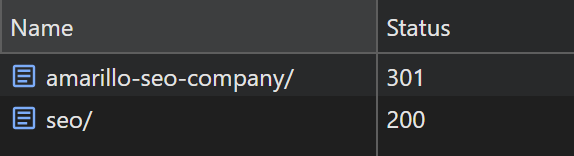
Start with the links that would cost someone a booking or a wasted trip if they broke. We opened Sparrow’s old Amarillo SEO link seven times. Chrome started fresh for each test and had to ask the site for the page again. Every time, the old link gave Chrome the new address, /seo/ (301, moved permanently). Chrome followed it, and the new page confirmed it was available (200, OK). See both replies in Chrome.
The new page’s first reply came 397 milliseconds after Chrome asked for the old page, on average. Most of that time passed before Chrome had the new address. It spent about 183 milliseconds connecting and asking for the old page, then about 112 milliseconds waiting for the forwarding instructions. Chrome reused the connection to ask for the new page and waited about 100 milliseconds for its reply.
We also checked all 20 city SEO addresses retired in this change. Each reached the nationwide page in one permanent redirect.
Now open the destination page and read its first line. It offers remote SEO services across the United States. Someone following the Amarillo link now reaches that broader offer. Make the same comparison on your site. If the customer wanted a particular service, can they still find it and ask about it?
- Read the server's answer. In Chrome, open Developer Tools → Network. Select Keep log (called Preserve log in some versions), Disable cache and the Doc filter, then load the old address. Select its request and look under Headers for its status and, for a redirect, the Location. The next document request should be the final destination. Your developer can supply this record for every row. Chrome’s Network reference
- Check the page, then its next step. Read the service details and open the inquiry form. Arrange a labeled test with the person who receives requests. Can they tell which service you asked about? If the address or the message is wrong, write down what you saw, assign the fix and repeat the test from the original link.
- Check what search engines see. On pages meant to appear in search, remove preview-only passwords or indexing blocks from the public site. Check that the preferred address named in the page's canonical tag is the final public URL, not the preview domain. Update links in the navigation and body, and submit a sitemap containing the new preferred addresses. Keep the preview itself private.
Test the rest of the map, including intentional removals. A friendly “page not found” screen should still return a real 404 or 410. Don't send retired pages to the homepage to make the error count look smaller. If the whole domain changes, verify both sites in Search Console and follow Google's Change of Address instructions. A path change on the same domain doesn't use that tool.
Check for broken links and search delays after launch
If a customer reports trouble, ask for the exact link they used. Open it and trace the route. A wrong destination, a blocked public page or a form that goes nowhere needs a repair now. Waiting for a search report won't fix it.
If the route works but the new page hasn't appeared in search, inspect the new address in Search Console’s URL Inspection tool. Compare Google's last indexed version with its live test. A successful live test shows that Google can access the page. The indexed result tells you whether Google has added it to its index.
Check again as Google recrawls. Compare clicks and impressions for the old and new addresses together with the period you saved. Choose comparable days and account for seasonal changes in the business. Check actual inquiries separately. A quiet new address on its own tells you little if the old one is still getting clicks. Google's site move guidance recommends leaving redirects up for at least a year in most cases. A working link on an old estimate is a good reason to keep one longer.
The useful handover is the map with its observed results. Give the owner the tested addresses, the date, any open fixes and the name of the person responsible. The next time a customer forwards an old estimate, the shop will know where that link leads.